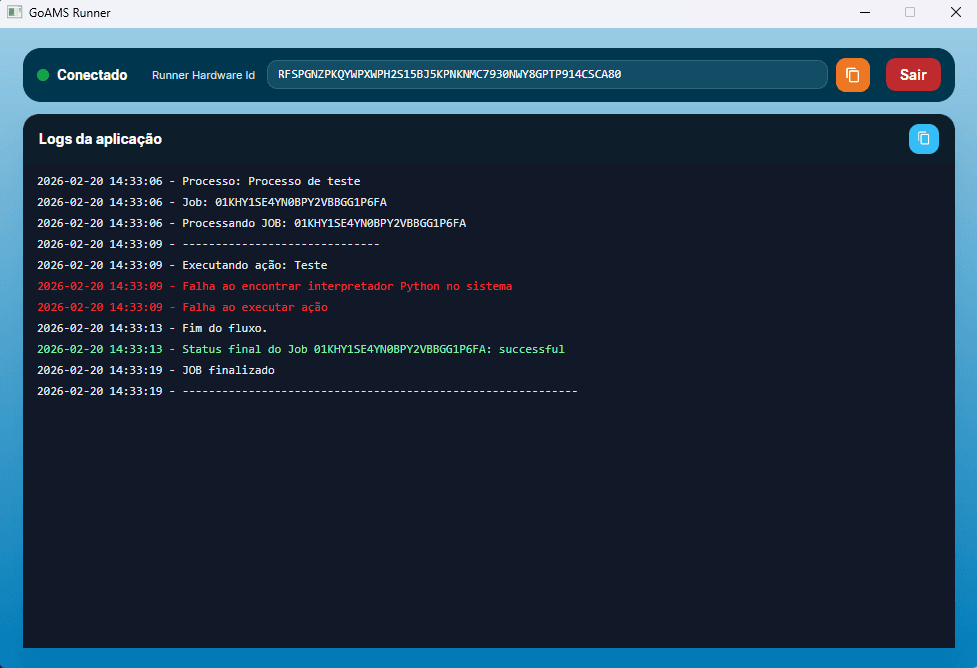
Runner tutorial
The Runner is the agent installed on a machine that executes your automated processes (jobs). Each Runner is registered with a unique Hardware ID, appears as online or offline depending on its connection, and can be activated or deactivated. This tutorial explains how to access the Runners area, create and edit runners, and use them in Jobs and Schedules.
1. Where to access
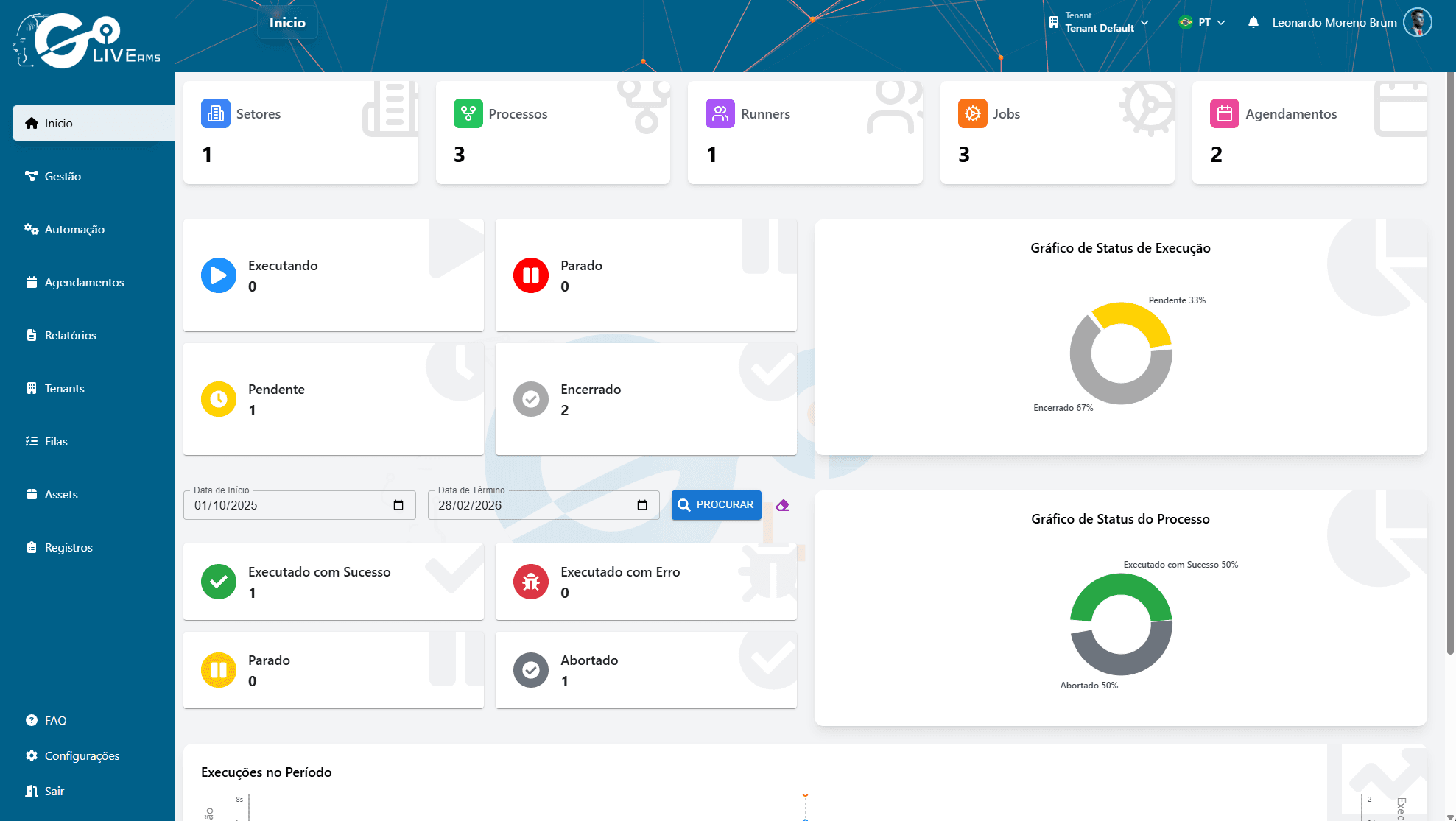
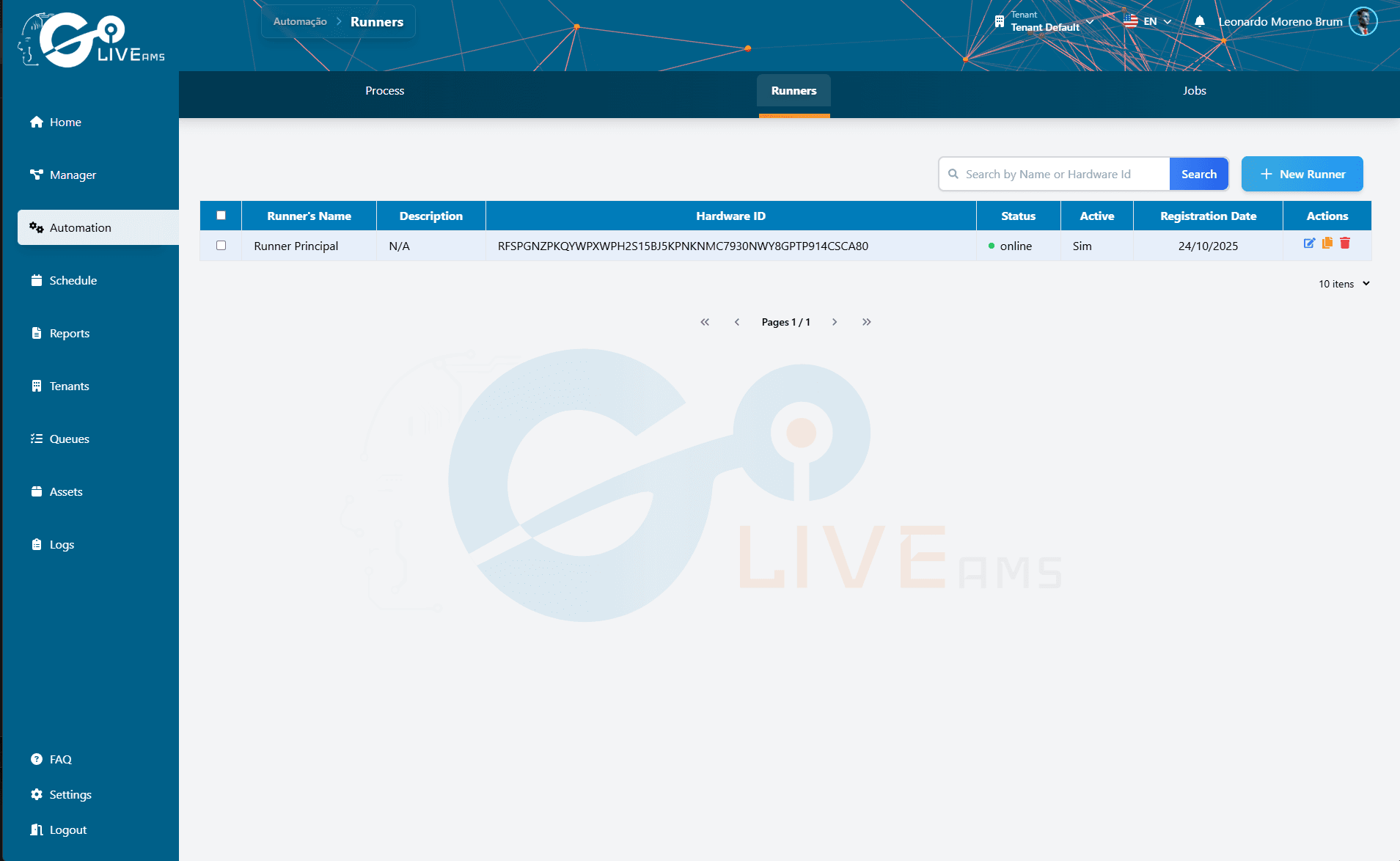
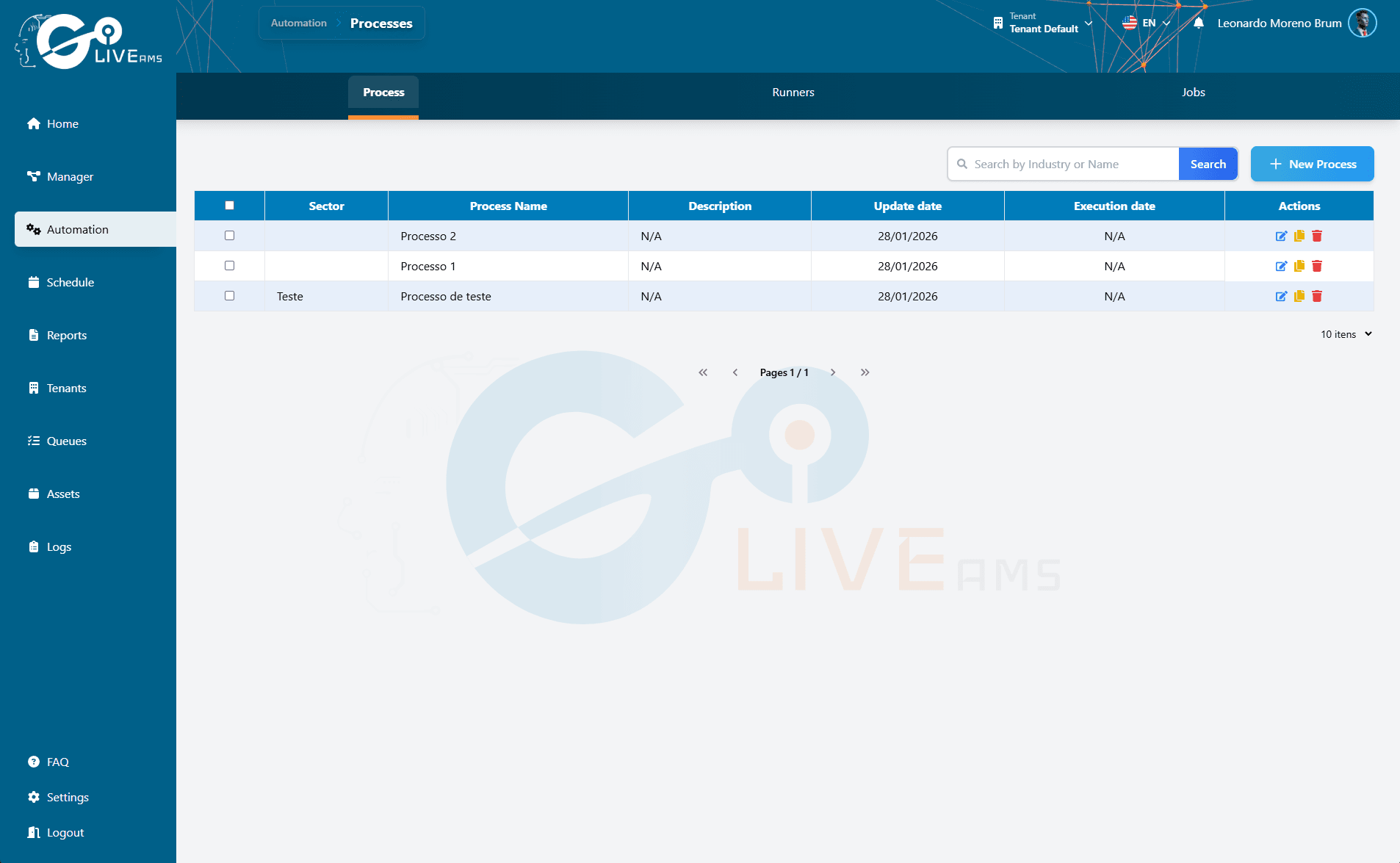
In the Automation menu, open the Runners tab. That screen lists all runners in your organization.
2. How to get the Hardware ID
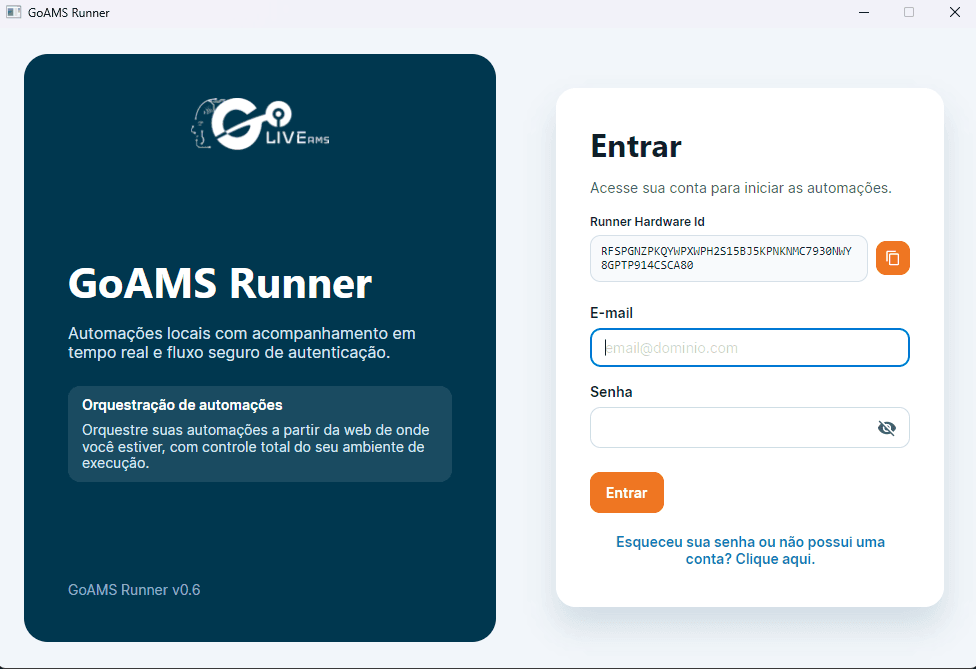
The Hardware ID is the unique identifier of the machine that will execute jobs. This value is shown in the Runner application installed on that machine. Open the Runner app on the computer where it is installed and copy the HWID from there. The web interface does not display or generate this ID; it always comes from the local agent.
3. How to create a Runner
- Click New Runner.
- Fill in the required and optional fields: Name (required), Description (optional, up to 300 characters), and Hardware ID (required).
- Use the Activate Runner toggle to make the runner active. If it is on but there are no licenses available for the organization, the runner is created but will not be activated.
- Click Create to finish.
The organization has a maximum number of runners (max_runners). When that limit is reached, the New Runner button is disabled until capacity is available.

4. View the Runner list
The table shows Name, Description, Hardware ID, Status (online or offline, with a green or red indicator), Active (Yes or No), Registration date, and Actions. You can search by name or Hardware ID, sort by column, and change pagination (10, 25, or 50 items per page) as needed.
5. Edit a Runner
Click the Edit icon on the runner row. You can change the name, description, Hardware ID (avoid using an HWID already registered for another runner), and the Activate/Deactivate toggle. Save to confirm your changes.
6. Duplicate a Runner
Click the Duplicate icon. The form opens with the name and description already filled from the original runner. You must enter a new Hardware ID, because each runner must correspond to a different machine. Set the new HWID and create the runner.
7. Delete Runner(s)
To delete a single runner, use the Delete icon on the corresponding row. To delete several at once, check the boxes for the runners you want and use the batch delete button (trash icon at the top of the list).
8. Use the Runner in a Job
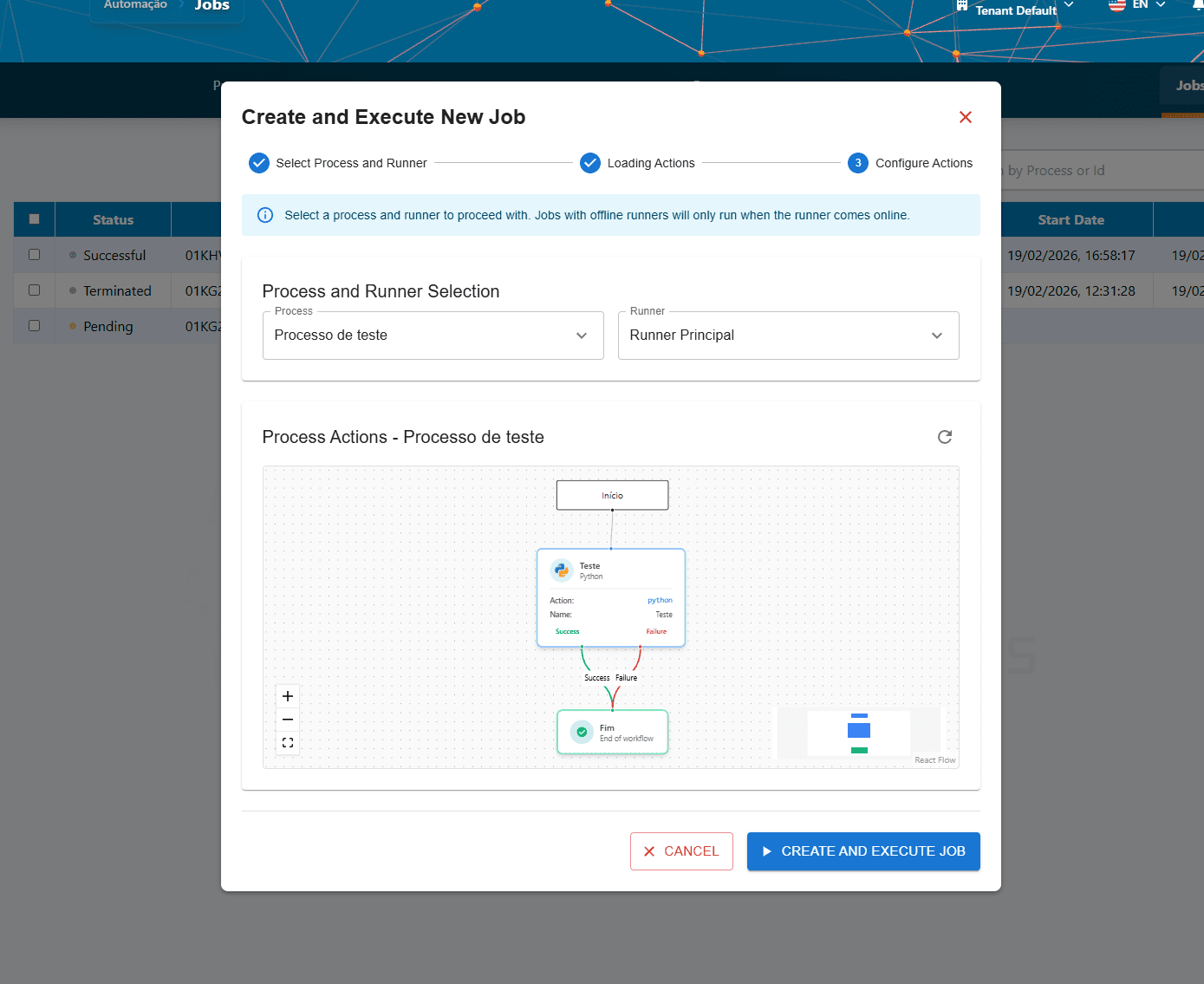
Go to Automation, then Jobs, and click Run Job. Select the Process and the Runner to use. Prefer a runner with online status (green indicator); if the runner is offline, the job remains pending until the agent connects.
9. Use the Runner in a Schedule
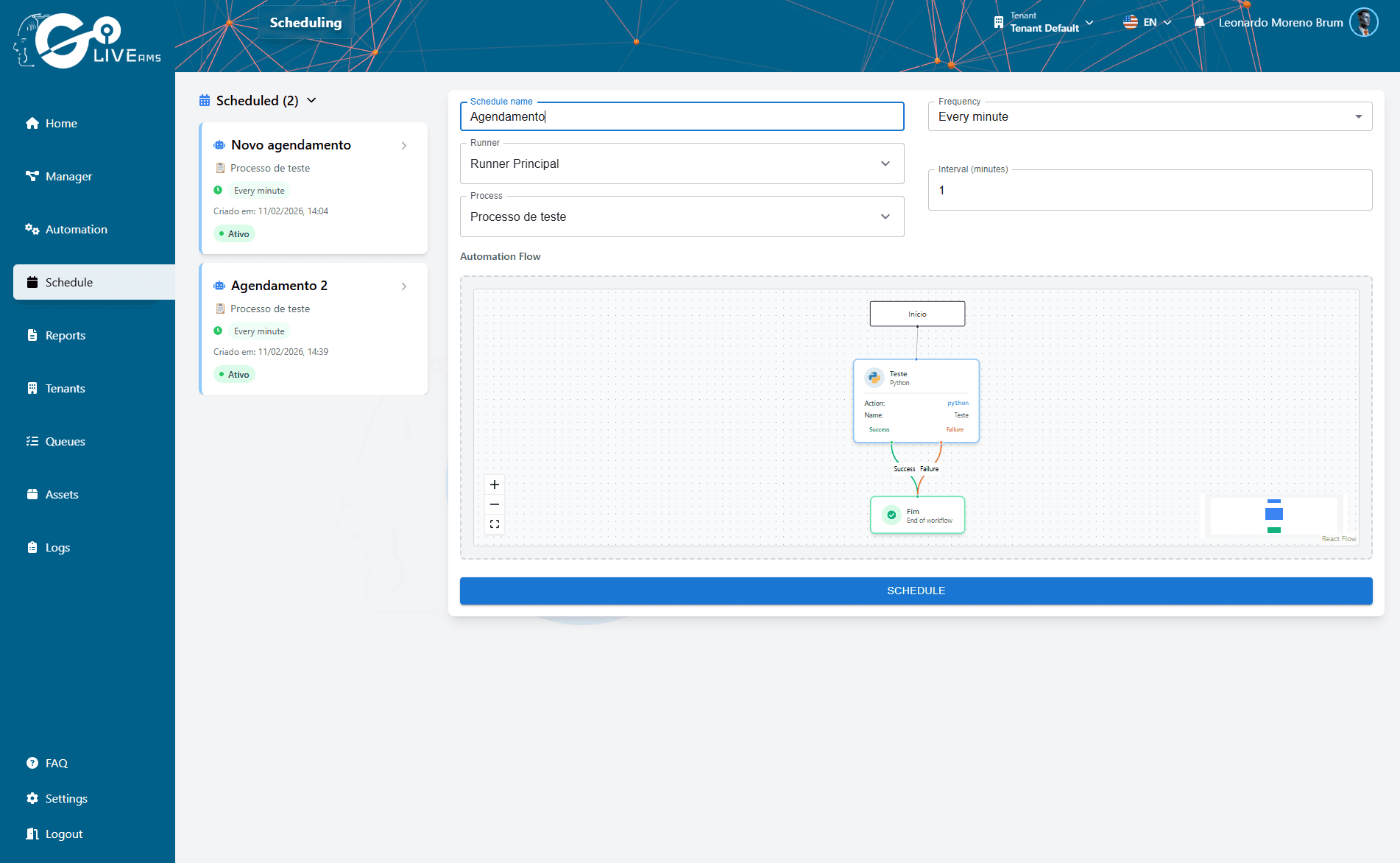
In the Schedules area, when creating or editing a schedule, choose the process and the runner. The chosen runner should be available and ideally online when the scheduled execution is triggered.
10. Understanding status
- Online status (green): the agent is connected and ready to run jobs.
- Offline status (red): the agent is disconnected; jobs assigned to it stay pending until the runner reconnects.
- Active: indicates whether the runner is enabled for the organization (within license and business rules). An inactive runner does not receive new jobs.