Installing and setting up the Runner
The Runner is the desktop agent that executes your automation processes. It is installed on your machine, connected to the platform and becomes ready to receive and execute tasks. In this tutorial, you will learn how to download, install, log in and register your Runner in GoAMS.
What is the Runner?
The Runner is a software you install on your machine (Windows, Mac or Linux). It works as an agent that connects to GoAMS and executes automation processes locally on your computer.
Downloading and installing the Runner
Step 1: Go to the Runners section
In the GoAMS dashboard, go to the Runners section. There you will find the option to download the installer.
Step 2: Download the installer
Choose the installer compatible with your operating system (Windows, Mac or Linux) and download it.
Step 3: Run the installation
Open the downloaded file and follow the installation wizard. The process is quick and simple — just follow the steps and finish.
Logging into the Runner
Step 1: Open the Runner
After installation, open the Runner application on your machine.
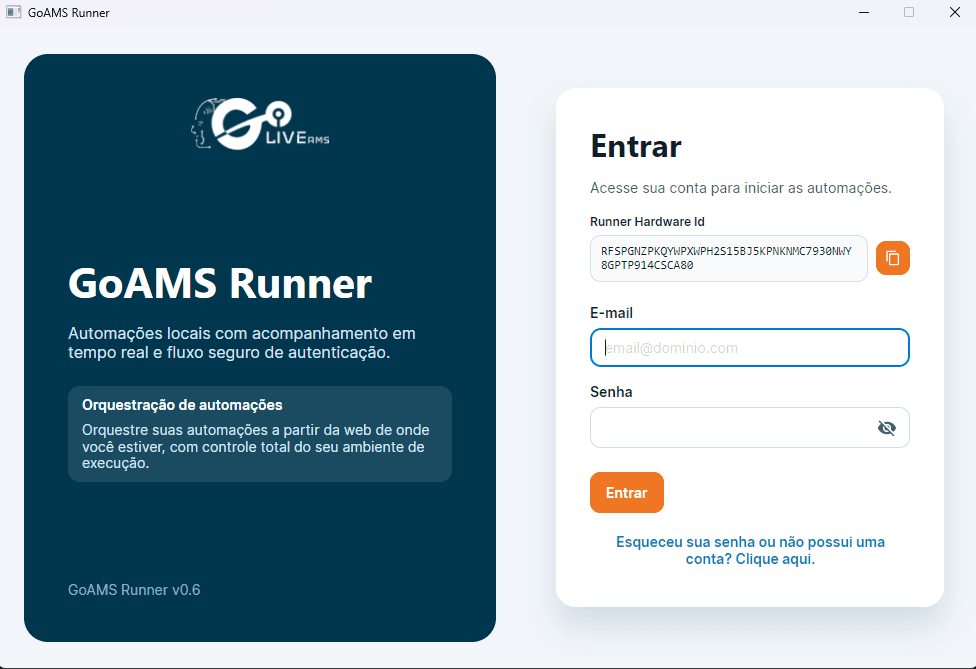
Step 2: Log in with your GoAMS account
Use the same credentials you use to access GoAMS (email and password or SSO). The Runner login is the same as the platform.
Step 3: Get the Hardware ID
After logging in, the Runner will display a Hardware ID — a unique code that identifies your machine. Copy this code, as you will need it in the next step.
Important
The Hardware ID is automatically generated based on your machine. Each machine will have a different Hardware ID.
Registering the Runner in GoAMS
Step 1: Access the GoAMS dashboard
In your browser, log in to GoAMS and go to the Runners section.
Step 2: Add a new Runner
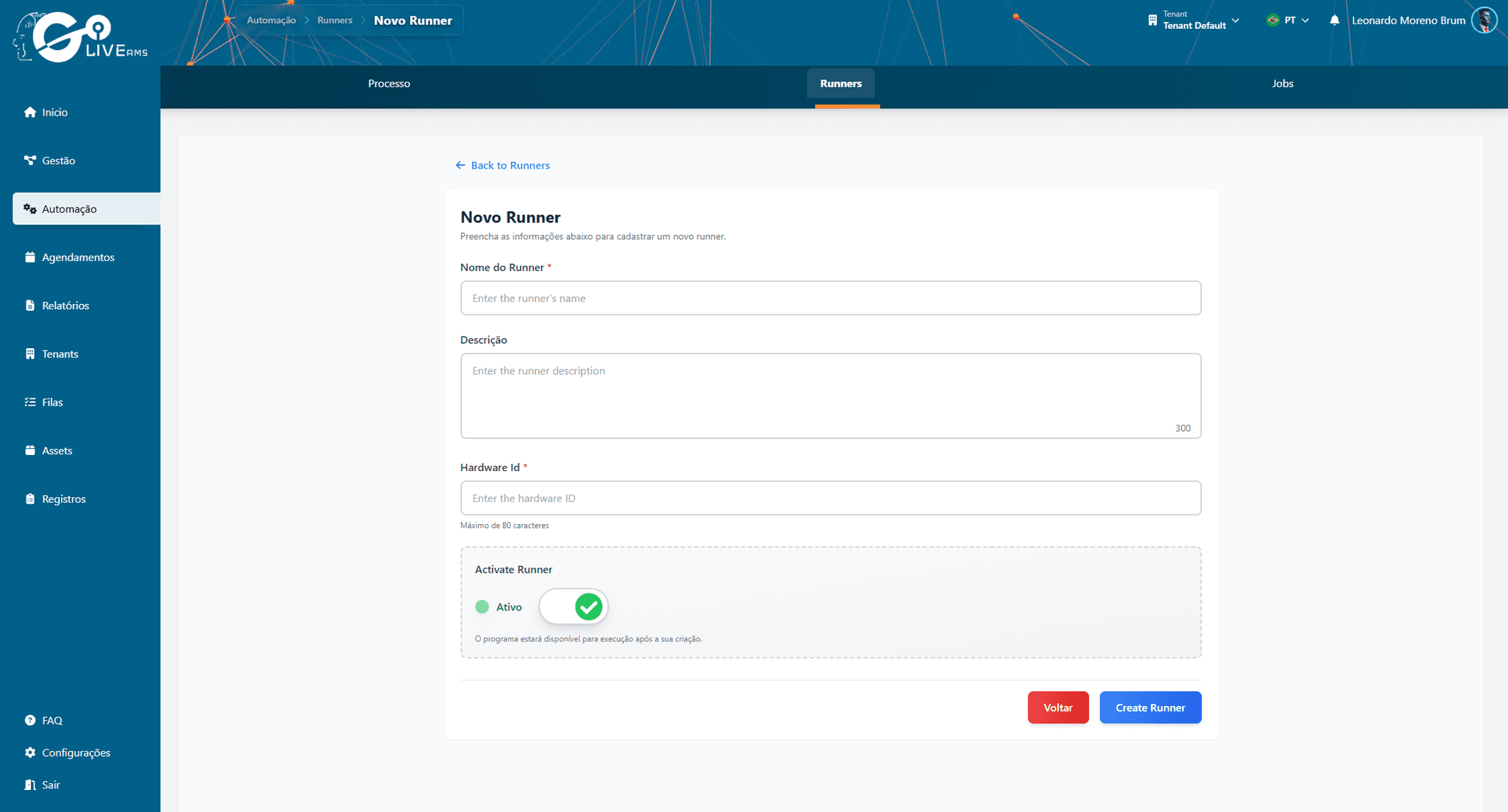
Click "Add Runner". A form will appear to register the new Runner.
Step 3: Paste the Hardware ID
In the Runner registration form, paste the Hardware ID you copied from the Runner application on your machine. Fill in the Runner name and save.
Step 4: Activate the Runner
After registration, activate the Runner on the platform. With the Runner active in GoAMS and the application running on your machine, the status will change to "Online".
Tip
Give your Runner a descriptive name (e.g. "Office PC", "Personal laptop") to make it easier to identify when you have multiple Runners.
Runner status
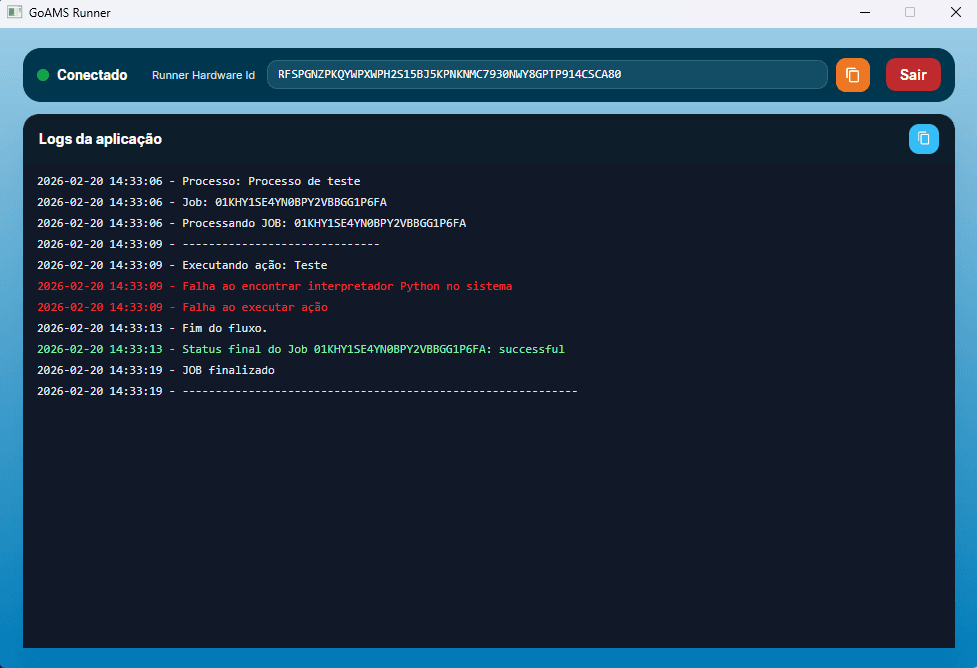
After completing the steps above, your Runner will be working. You can check the status at any time:
Online — Runner connected and ready to execute processes
Offline — Runner disconnected. Make sure the application is open on your machine
Busy — Runner currently executing a process
Tip
Keep the Runner application always open on your machine so it stays available to execute scheduled processes automatically.
Summary
To get your Runner working, just follow these steps:
- 1
Download and install the Runner on your machine
- 2
Open the Runner and log in with your GoAMS account
- 3
Copy the Hardware ID displayed in the Runner
- 4
In the GoAMS dashboard, register the Runner using the Hardware ID
- 5
Activate the Runner — the status changes to Online and it's ready to go
Next steps
With the Runner set up, you can now: